Configurations: storage, color and size in one listing
One iPhone in six variants — one listing, not six. Each combination has its own price and stock.
Configurations are available for business listings. Buyers pick the storage and color right on the listing page and see the price and stock of exactly that variant, while the feed shows “from” the lowest price. A listing with configurations counts as one toward your plan’s limit.
1. Turn on configurations
In the listing editor, open the “Price” block.
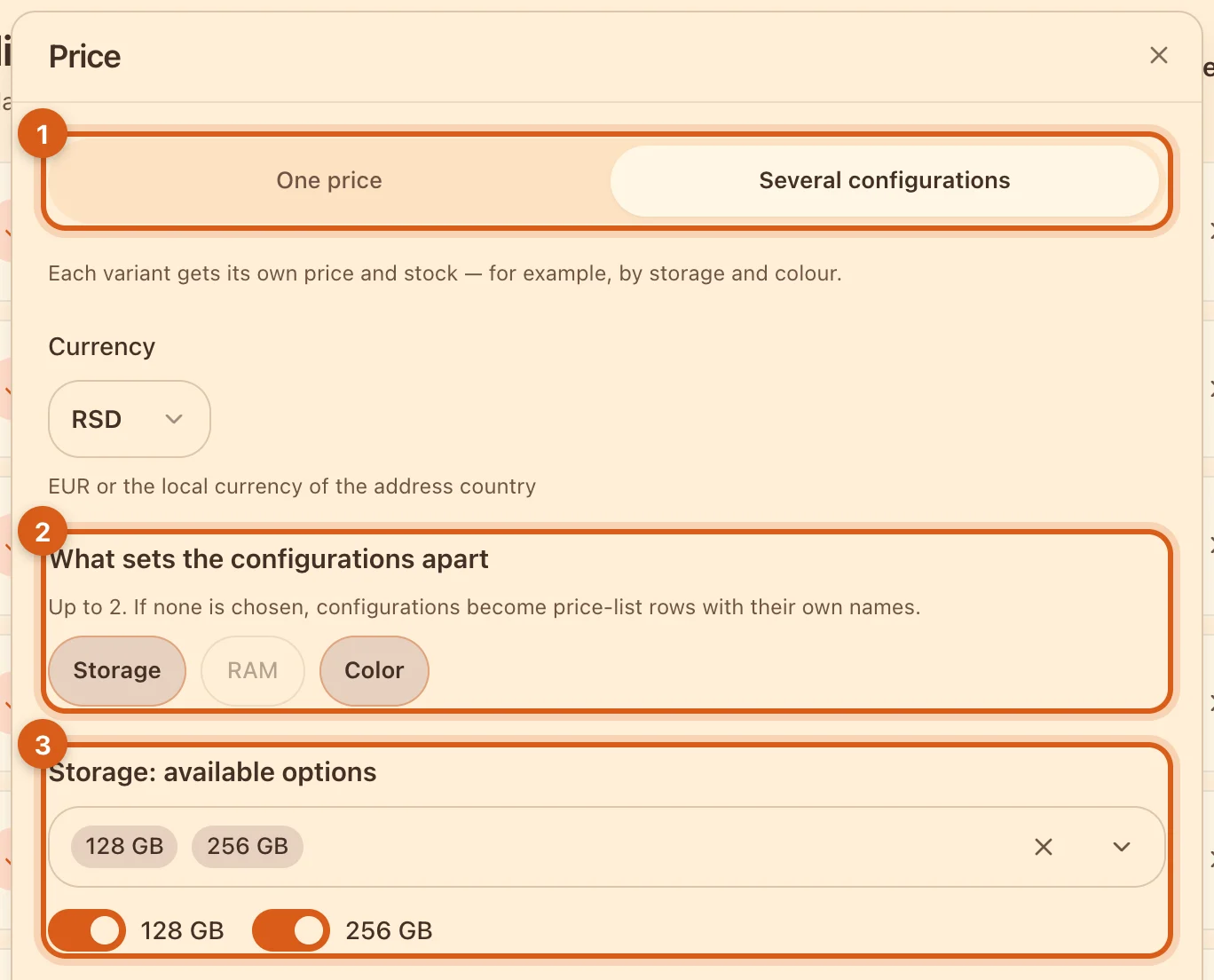
- 1“Several configurations” instead of “One price”.
- 2What the variants differ in — no more than two attributes. The set depends on the category: storage, RAM and color for phones, size and color for clothing, graphics card and storage for laptops.
- 3Which values you have: tick them in the list. Your color isn’t there? Add it. The switch under a value takes it off sale entirely — for example, all of the pink color.
2. Price and stock for each combination
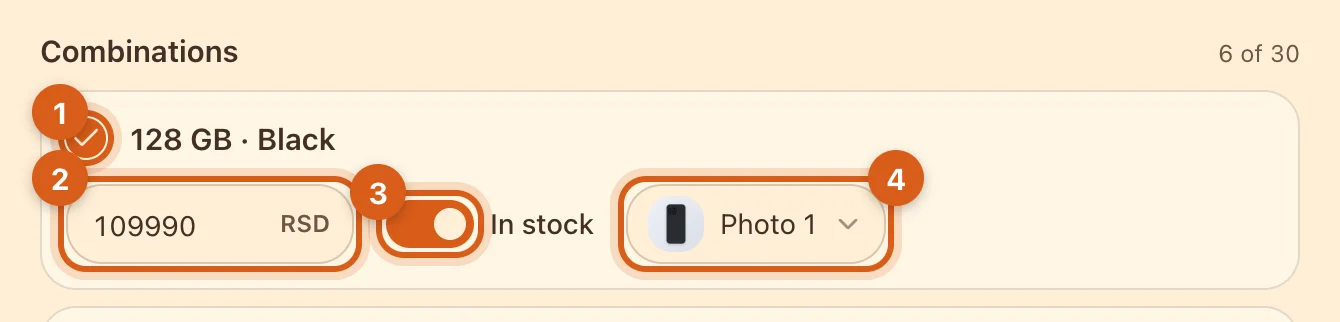
- 1A tick means you have this combination. Untick it if, say, 256 GB doesn’t come in pink.
- 2The price of this combination. An empty field means “On request”. To set the same price for all of them, use the “Apply to all” button.
- 3Stock: a combination that is switched off can’t be ordered, but it stays on the page.
- 4Which photo to show when the buyer picks this combination.
- Up to 30 combinations in one listing.
- The listing has no separate price: the feed shows the lowest price among the combinations in stock, with “from” if the prices differ.
- One currency for the whole listing.
3. Change stock and prices on the go
In “My Ads”, open the “⋯” menu on the card → “Stock”. No need to open the hub.
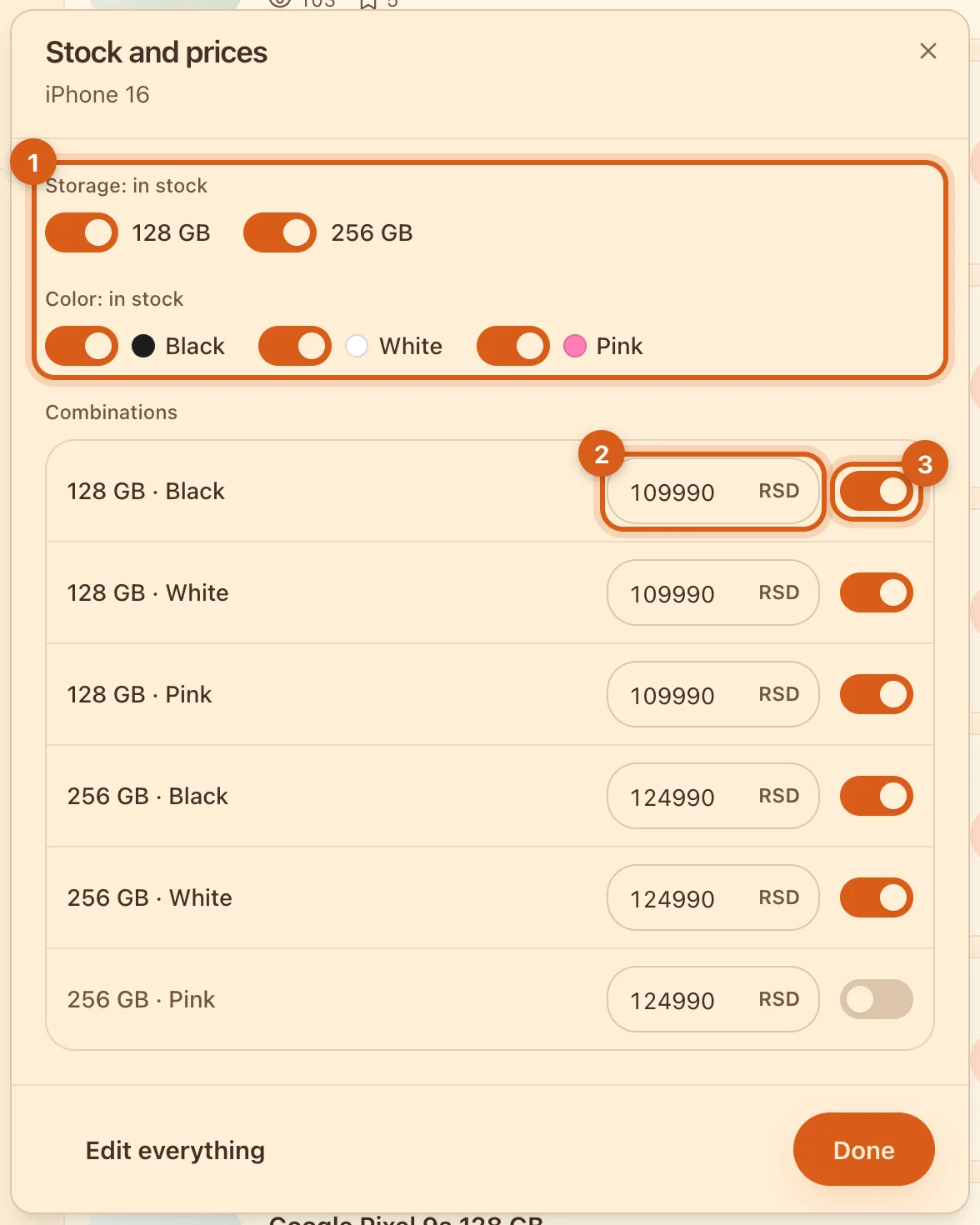
- 1A whole color or storage size sold out? Switch it off with one toggle.
- 2The price of a combination: type the new one and press Enter or just leave the field.
- 3Stock for a single combination.
Everything applies right away. On a computer, it’s just as easy to do this for many items in the “Products” table — expand a row with the arrow.
What buyers see
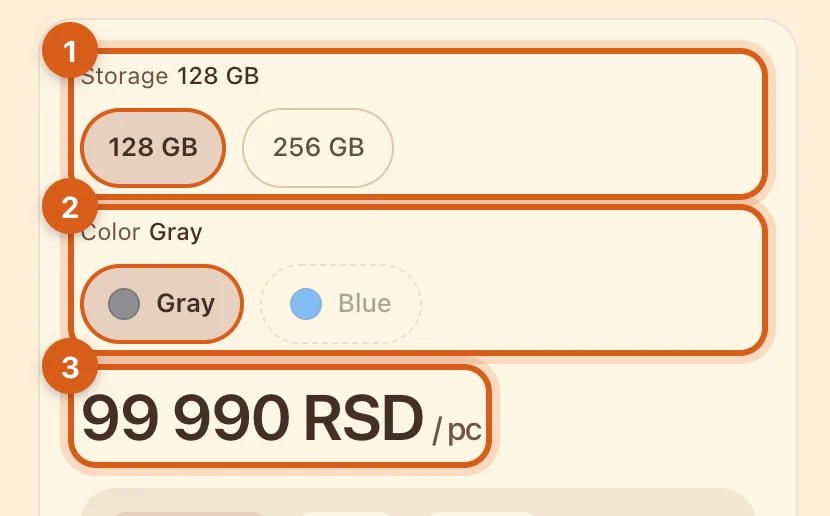
- 1Values of the first attribute. The cheapest configuration in stock is selected by default.
- 2Values of the second one. Dashed — a combination that doesn’t exist with the value already selected; crossed out — out of stock altogether.
- 3The price of the selected configuration. The buyer places the order at this price — the order shows which configuration they chose.
- In catalog filters, the listing is found by the values of configurations in stock: by the “256 GB” filter — only if 256 GB is in stock.
- Lowered the price of a combination by 5% or more? The feed shows “was from … now from …” and the size of the discount. More in the guide “Discounts”.
- No combination in stock — the listing stays in the feed marked “Out of stock”, and it can’t be ordered.
Frequently asked questions
Why is there no “Several configurations” switch?
Configurations are only available for business listings. You can turn a private listing into a business one if you have a business profile.
What happens if I change the category?
If the new category doesn’t have the right attributes, Ovdix will warn you, and the configurations will be reset.
Are configurations copied with “Duplicate”?
Yes, together with prices, stock and photos.
How do I go back to one price?
Choose “One price” in the “Price” block — all configurations will be deleted.