The “Products” table: bulk prices and stock, export to Excel
All your listings in one table: change price and stock right in the row or for dozens of listings at once.
1. Open the table
The table works on a computer. Any seller can open it.

- 1“Products” in the left menu.
- 2Or the “Table” button in “My Ads”.
2. Find what you need
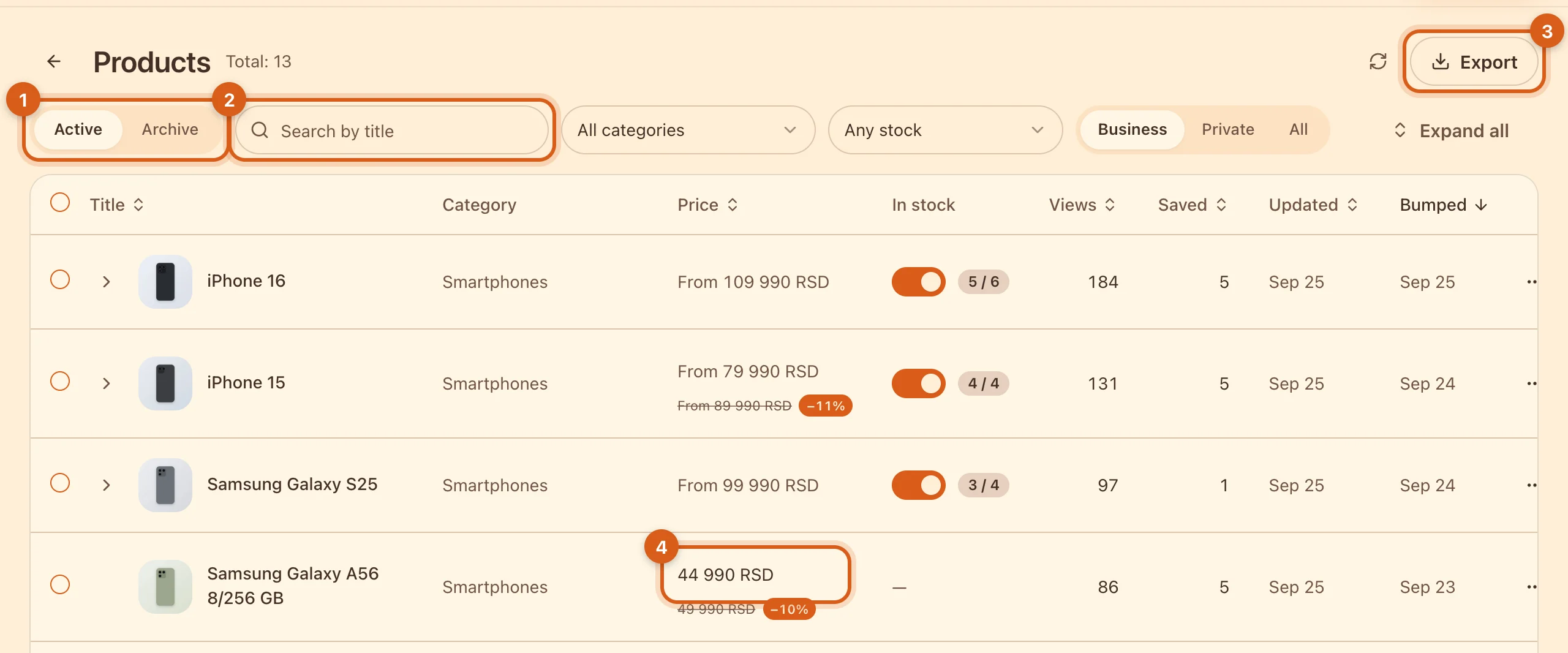
- 1Active listings or the archive.
- 2Search by title and filters by category and stock.
- 3“Export” — the whole list to Excel or CSV.
- 4Price: click, type the new one, done. It saves right away.
3. Configurations: price and stock for each variant
If an item has variants (storage, color), click the arrow to the left of the title.
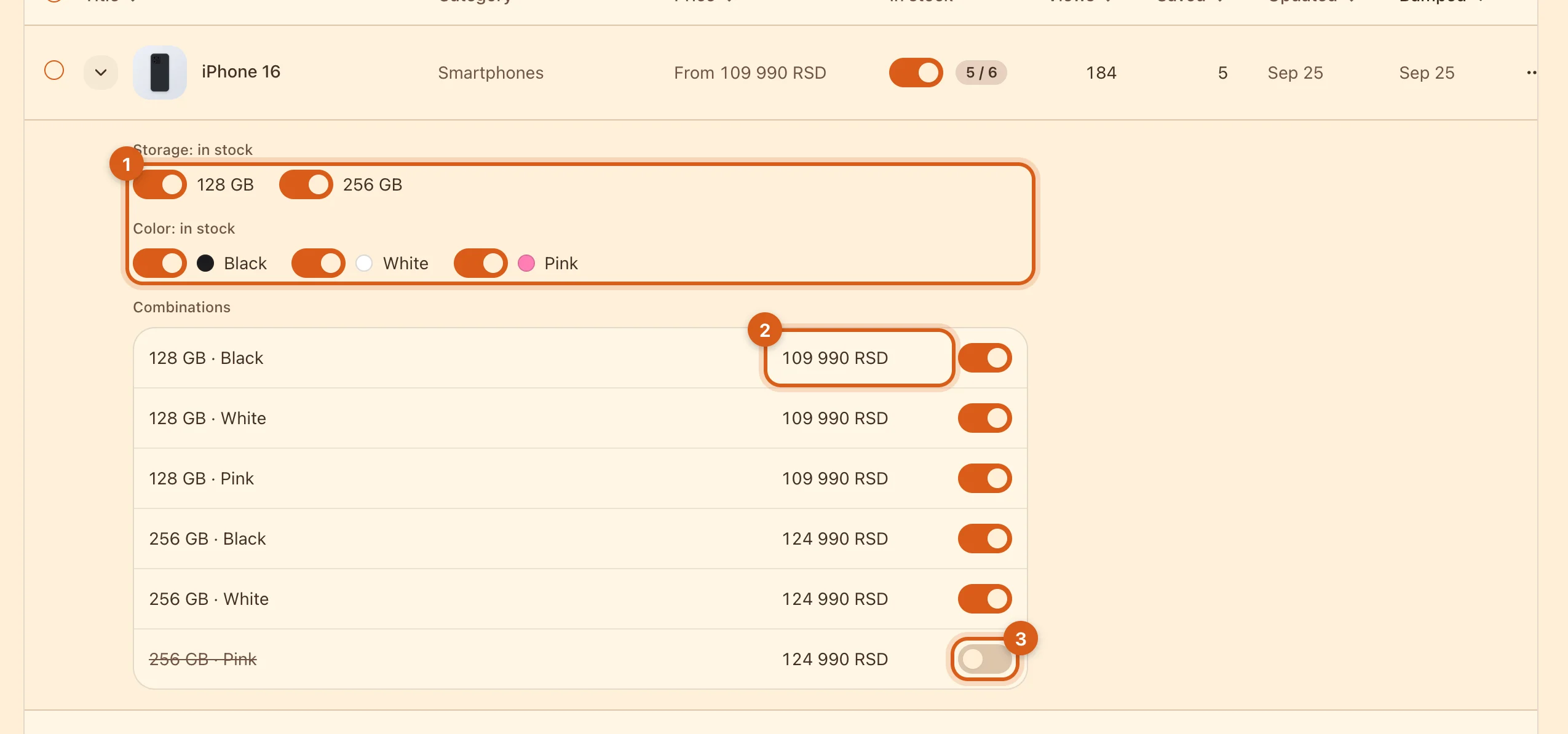
- 1Take a whole variant off sale — for example, all of the pink color.
- 2The price of a specific combination.
- 3Stock for a specific combination. Buyers can’t order one that is switched off.
4. Change many at once
Tick rows — a panel appears at the bottom.
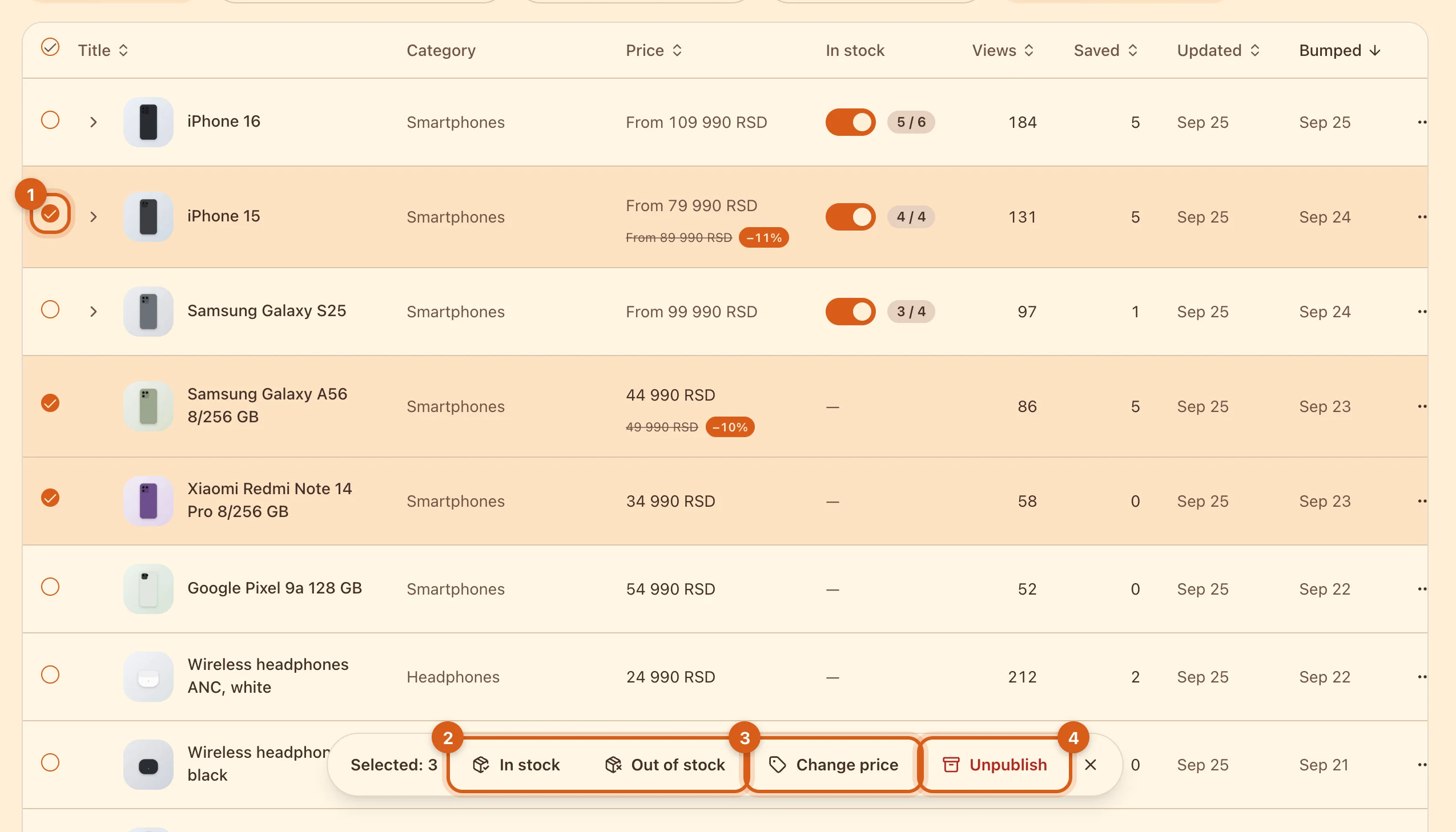
- 1The checkbox on a row.
- 2“In stock” / “Out of stock” — for items with configurations. A regular item sold out? Unpublish it.
- 3“Change price” — by a percentage or an amount.
- 4“Unpublish” — the listings go to the archive.
Clicked the wrong thing? After any action, there’s “Undo” at the bottom.
5. Change prices in bulk
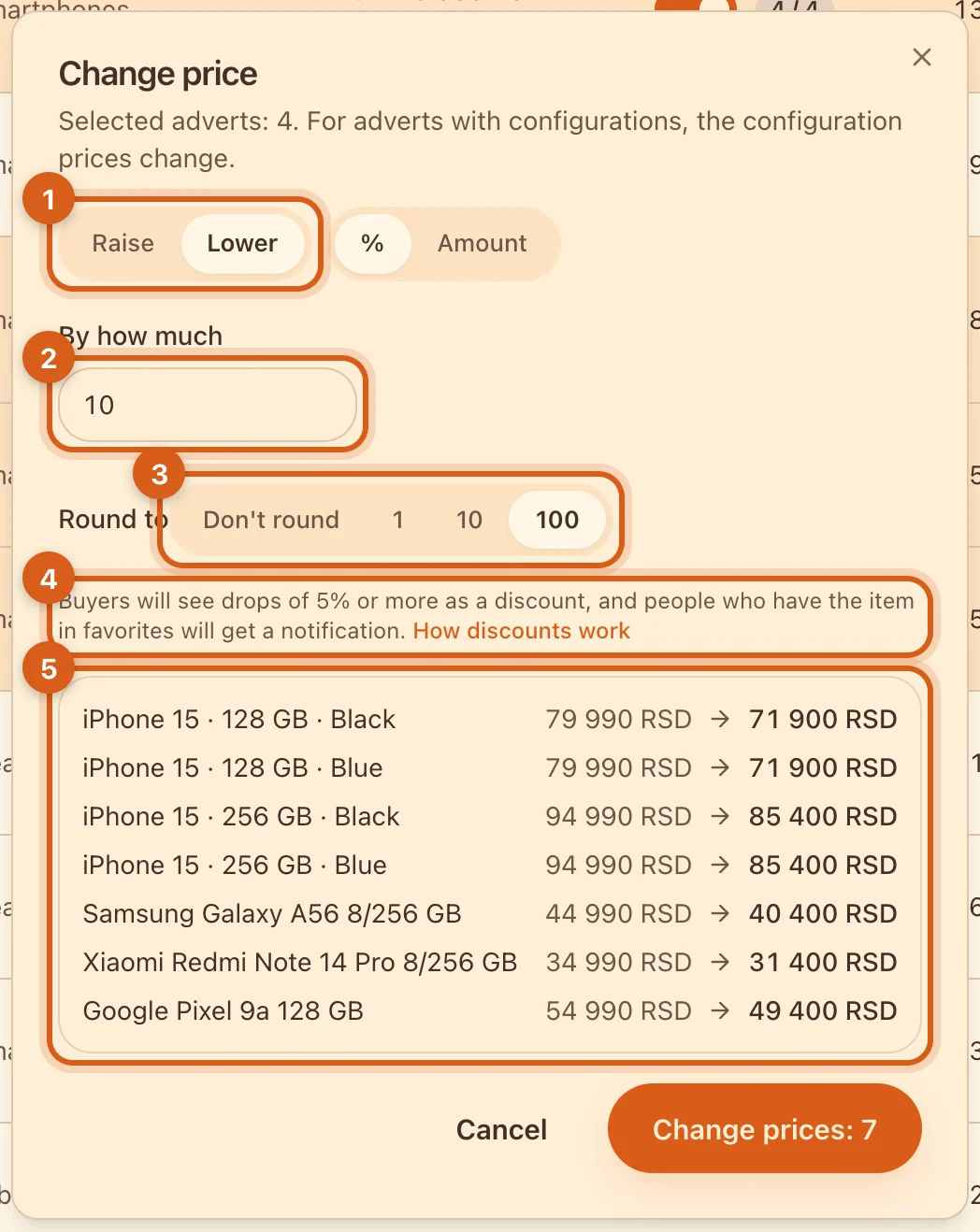
- 1Raise or lower.
- 2By how much — as a percentage or an amount.
- 3Rounding, so prices look neat.
- 4A drop of 5% or more becomes a discount: buyers will see the old price crossed out.
- 5Preview: what each row’s price will become. Check it and click “Change prices”.
How discounts work — in the guide “Discounts”.
Frequently asked questions
Can I use it on my phone?
The table is computer-only. On your phone, change price and stock in “My Ads”, one listing at a time.
Will my listing be bumped after a price change?
No. To get the listing back to the top of the feed, tap “Bump” — free once every 7 days.
How do I delete listings?
On the “Archive” tab, tick them and click “Delete”. If a listing had chats or a deal, the buyer keeps them.
Can I upload a price list from a file or track stock in units?
Not yet. If you need this, write to support — it helps us decide what to build next.