Service bookings
The client picks up to three convenient times from your schedule, and you confirm one with a single tap. Ovdix sends the client reminders on its own.
A booking is an ordinary service order, just with a time. It works for business storefront services: on the service page the client taps “Book”, picks a convenient time from your schedule, and you confirm it or suggest your own.
Turn on bookings and fill in your hours
Open your business profile, “Bookings” tab.
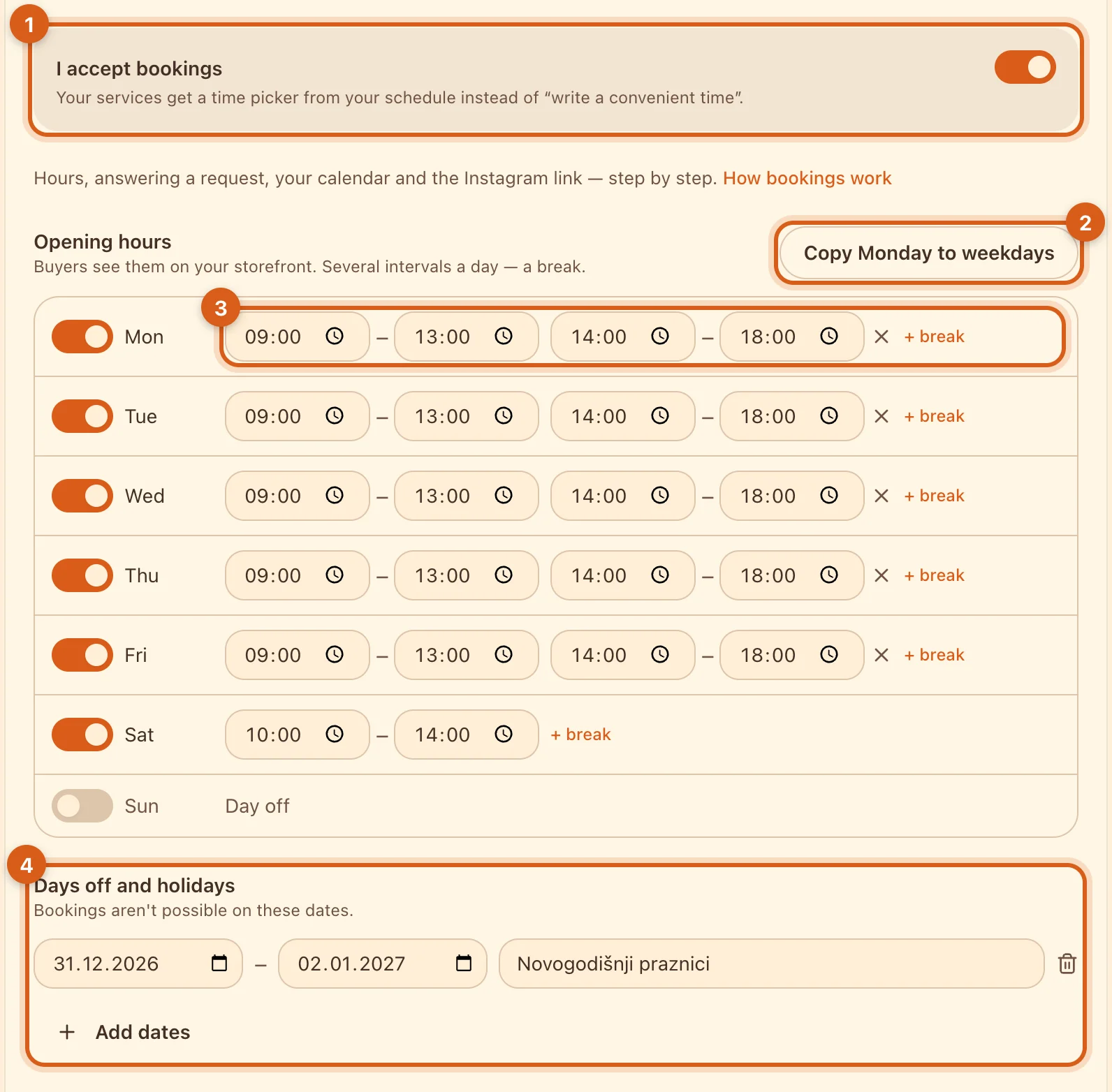
- 1“I accept bookings” — your services get a time picker. You can’t turn bookings on without opening hours.
- 2“Copy Monday to weekdays”: fill in Monday and copy it to Tuesday–Friday. A day off is the switch on the left.
- 3“+ break” splits a day into two intervals, for example 09:00–13:00 and 14:00–18:00. You can adjust the time of any interval.
- 4“Days off and holidays” → “Add dates”: no bookings can be made on these days.
The tab has its own “Save” button. Buyers see your hours in the storefront header — “Open · until 18:00” or “Closed · opens …” — even when bookings are off. Times are shown in the time zone of the storefront’s country; you usually don’t need to change it.
Set the service duration
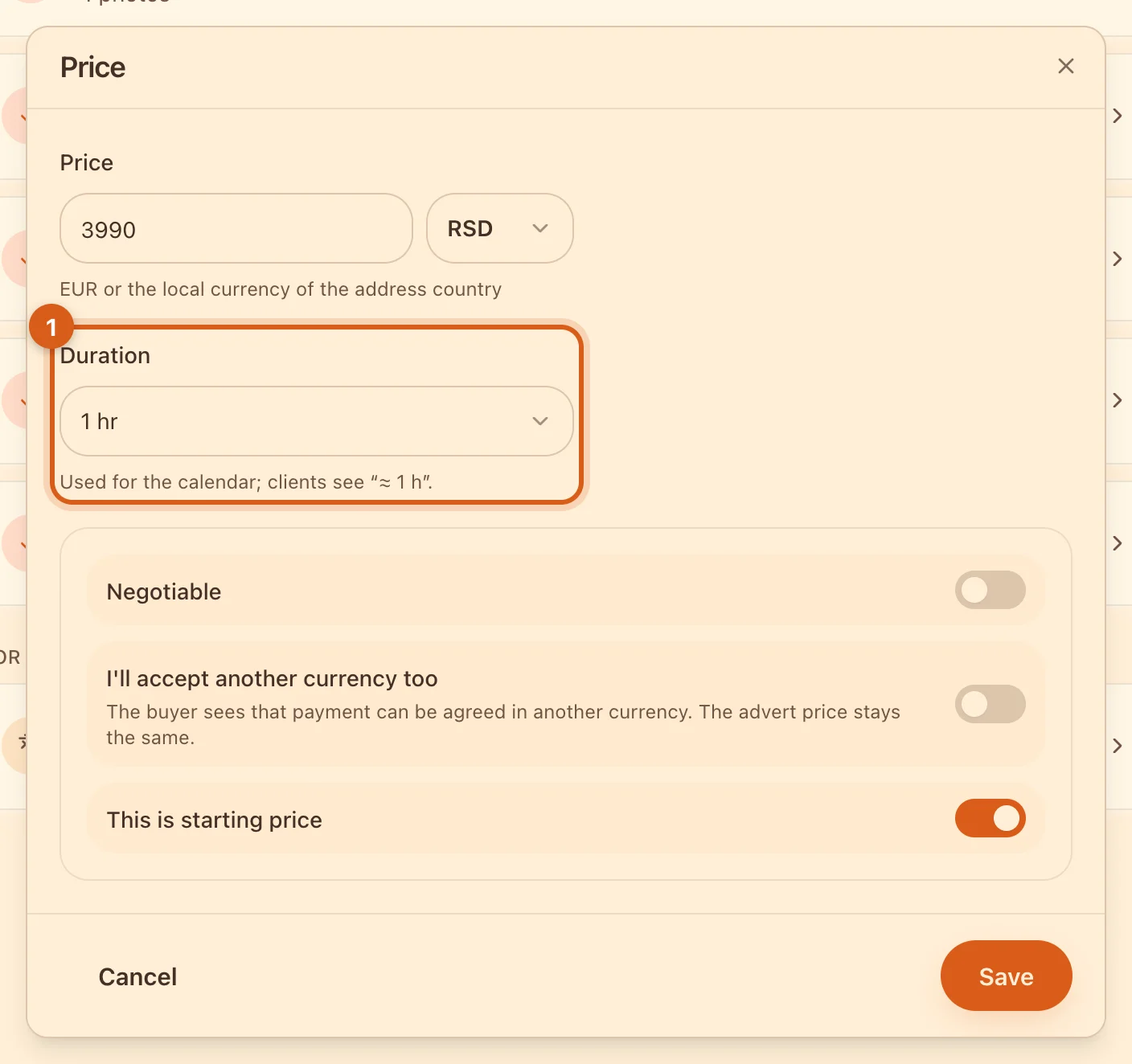
- 1“Duration” is in the service’s “Price” block, from 15 minutes to 8 hours. On the service page the client sees “Duration ≈ 1 hr”, and in the calendar the booking takes up that time. With “Don't specify”, the booking takes up 1 hour in the calendar.
How the client picks a time
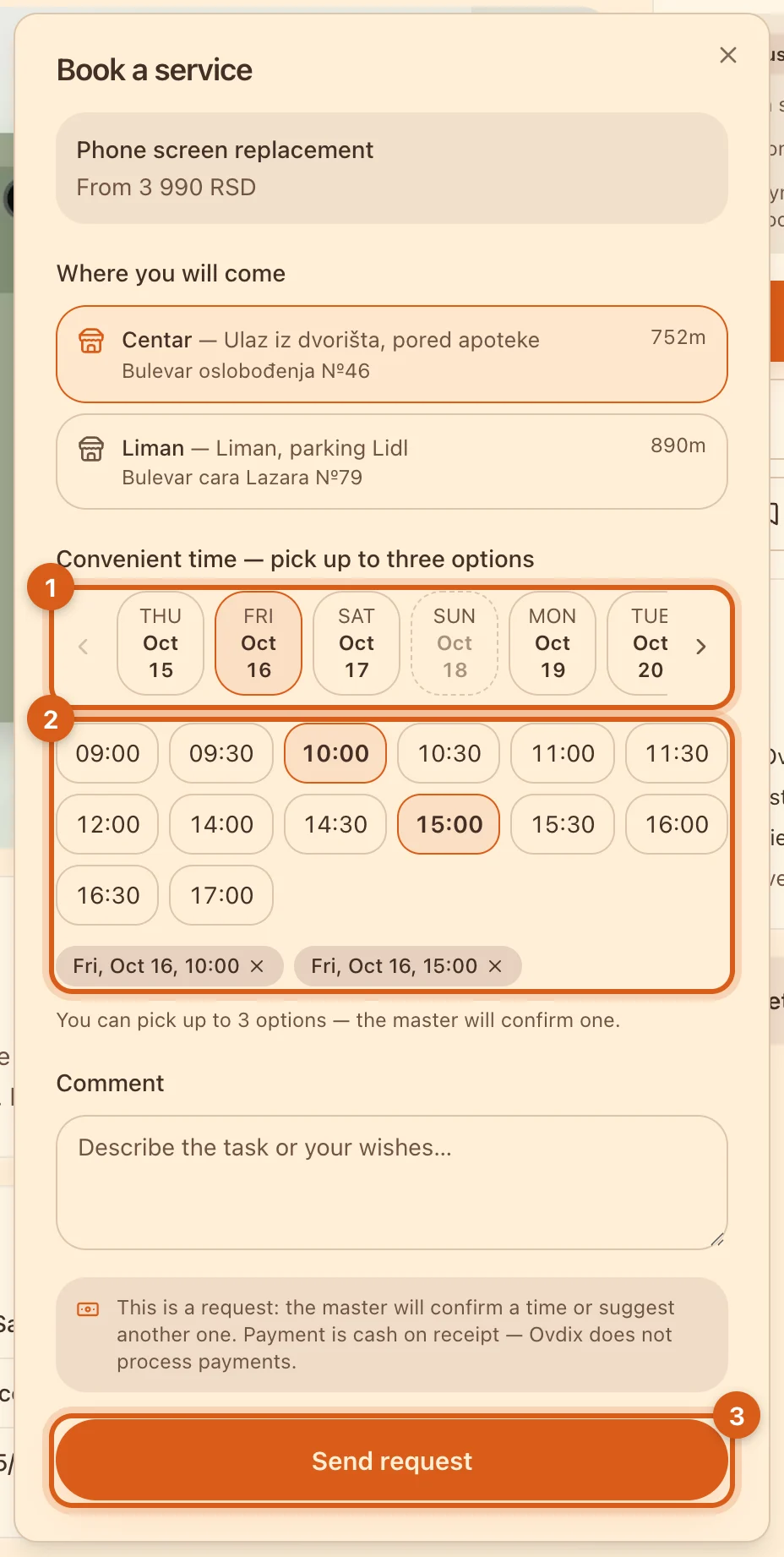
- 1Days two weeks ahead; the arrows go further, up to 60 days. Days with no free time are inactive.
- 2Times from your schedule in 30-minute steps. The client picks up to three options — they appear below.
- 3“Send request” — the order goes to you, and a card with the chosen times appears in the chat.
- The client sees only times within your schedule, excluding days off and the next 2 hours.
- Ovdix doesn’t check availability: this is a request, not a reservation. Two clients may ask for the same time — you decide which one to confirm.
- If the service involves a visit to the client, they pick not an exact time but a day and a window: morning, afternoon or evening.
Answer the request
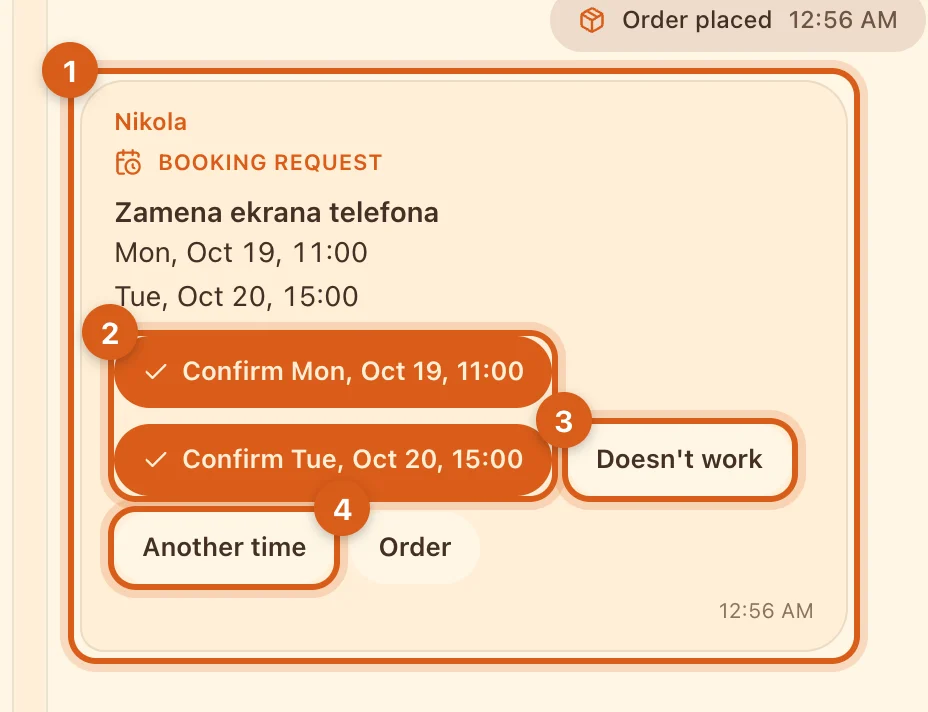
- 1The “Booking request” card: the service and the times the client chose.
- 2“Confirm …” — the booking is confirmed. The client gets a “Booked” card, and the order becomes confirmed.
- 3“Doesn't work” declines all the suggested options.
- 4“Another time” — suggest your own, even outside your schedule. The client confirms it the same way, with one tap.
The same buttons are in the order and in “Bookings”. If you don’t reply within an hour, you get a reminder. When the earliest of the suggested times arrives, the request expires: the client gets “The master didn't reply in time — suggest another time or write in the chat”, and the order stays open.
Rescheduling, cancelling and no-shows
- “Reschedule” — in the order or in “Bookings”: suggest a new time. Until the client confirms it, the previous time stands, and reminders follow it. The client can suggest rescheduling the same way.
- You cancel a booking like any order — “Cancel” in the order.
- “Client didn't show up” appears in the order once the booking has started. The order is cancelled without a deal or review; only you see this mark.
“Bookings”
All bookings are in the “Bookings” section of your account.
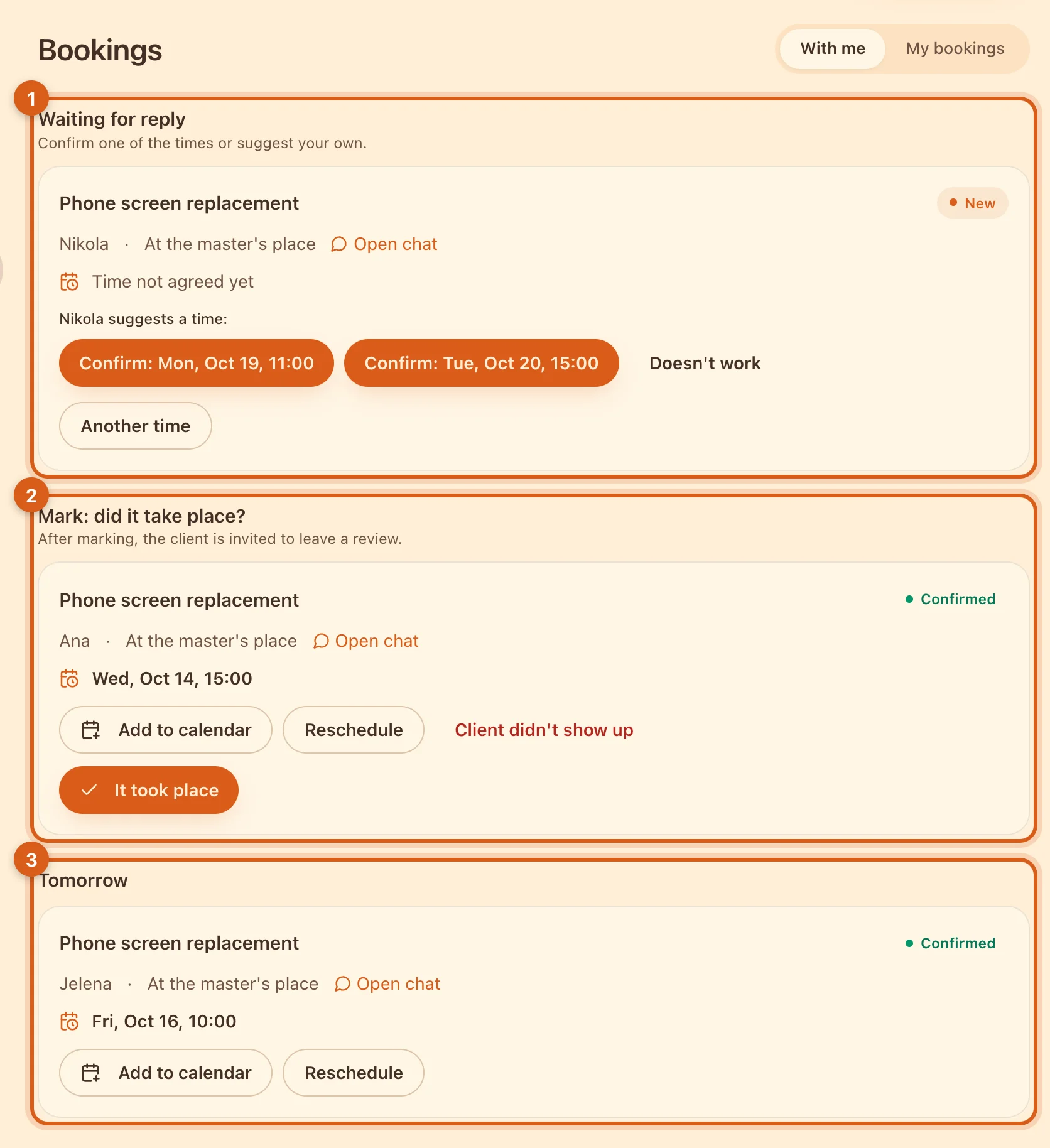
- 1“Waiting for reply” — requests you haven’t answered yet.
- 2“Mark: did it take place?” — past bookings. “It took place” closes the order as completed: a deal is created, and the client is invited to leave a review. “Client didn't show up” cancels without a deal.
- 3Upcoming bookings by day: today, tomorrow and later. Each has “Add to calendar” and “Reschedule”.
The “My bookings” tab shows bookings where you are the client. How deals turn into reviews is explained in the guide to deals and reviews.
Connect Google or Apple Calendar
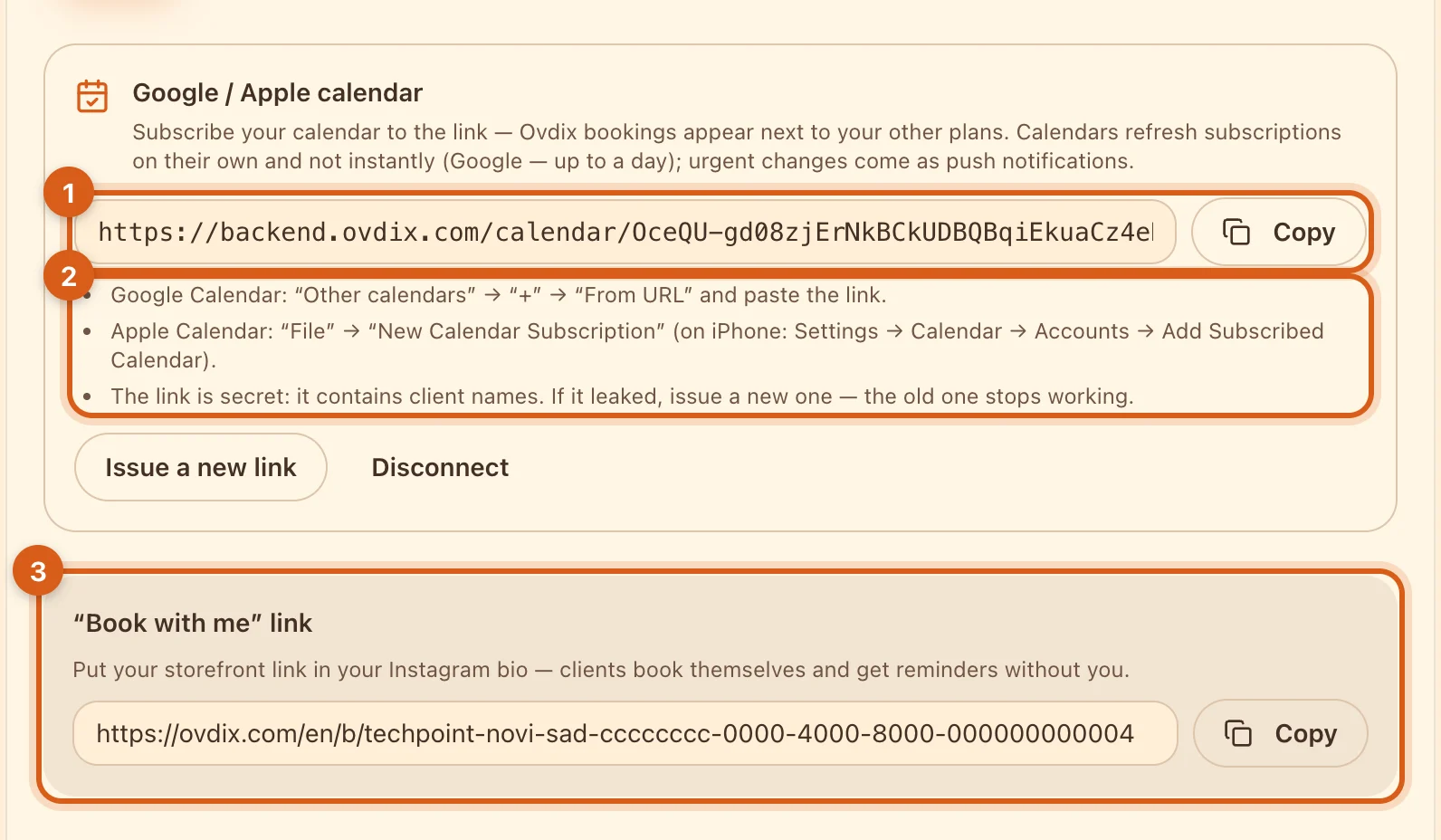
- 1“Connect calendar” issues a link to the feed of your bookings. Tap “Copy” and paste it into your calendar.
- 2Google Calendar: “Other calendars” → “+” → “From URL”. Apple Calendar: “File” → “New Calendar Subscription”; on iPhone — Settings → Calendar → Accounts → Add Subscribed Calendar.
- 3The “Book with me” link is your storefront’s address. Put it in your Instagram bio: clients will open the storefront and pick a service and time themselves.
The feed contains client names, so the link is secret. If it ends up in the wrong hands, tap “Issue a new link” — the old one stops working. “Disconnect” removes the feed entirely.
Reminders
- To the client — 24 hours and 2 hours before a confirmed booking. If the booking was made less than a day ahead, only the 2-hour reminder is sent.
- To you — at 08:00 storefront time, a summary of today’s bookings, if there are any. After a booking — a request to mark whether it took place.
- Reminders arrive wherever your other notifications do: in the app, on Telegram or by email. Turn them off with the “Booking reminders” switch in the notification settings. Requests and replies about times arrive as chat messages.
Frequently asked questions
Do I have to turn on bookings?
No. Without them a service order works as before: the client writes a convenient time in the comment, and you agree in the chat.
The client placed an order without a time. What should I do?
This can happen, for example, if they use an old version of the app. Open the order and tap “Suggest a time” — the client confirms it in the chat.
Where does the client see their booking?
In the order and in “Bookings” → “My bookings”. They can add a confirmed booking to their own calendar with the “Add to calendar” button.
Do bookings work in the app?
For now, bookings are set up and confirmed on the website. In the Ovdix app, requests show up in the chat as text — you can reply in words or open the order on the website.