Listing and storefront translations
Ovdix translates your listing for you. If a translation is off, you can fix it in any language — for free.
You write in your own language, and Ovdix translates the title, description and price list rows into the other 7 languages. Buyers see a “Translated from …” label and can open the original. Auto-translation sometimes gets things wrong — most often model names, spare parts and brands. You can fix such a translation yourself.
1. Open “Translations”
“My Ads” → “Edit” on the listing. The “Translations” card is at the very bottom, below the listing blocks.
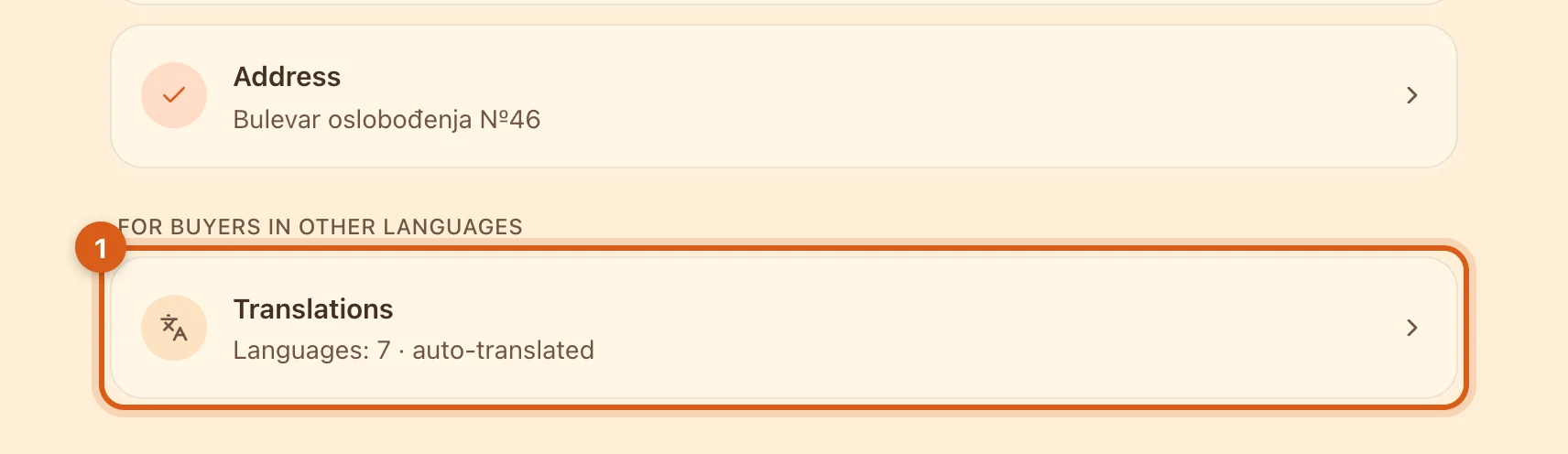
- 1The card shows whether the listing is auto-translated or you’ve already checked some languages yourself. Tap it to open a window with a tab for each language.
Storefront translations are in your business profile, on the “Storefront” tab, below the description.
The Ovdix app works the same way: when you edit a listing, the “Translations” card is at the bottom, under “For buyers in other languages”; for your storefront, go to “Business profile” → “Storefront”. Pick the translation language with the tabs above the fields.
2. Fix the translation
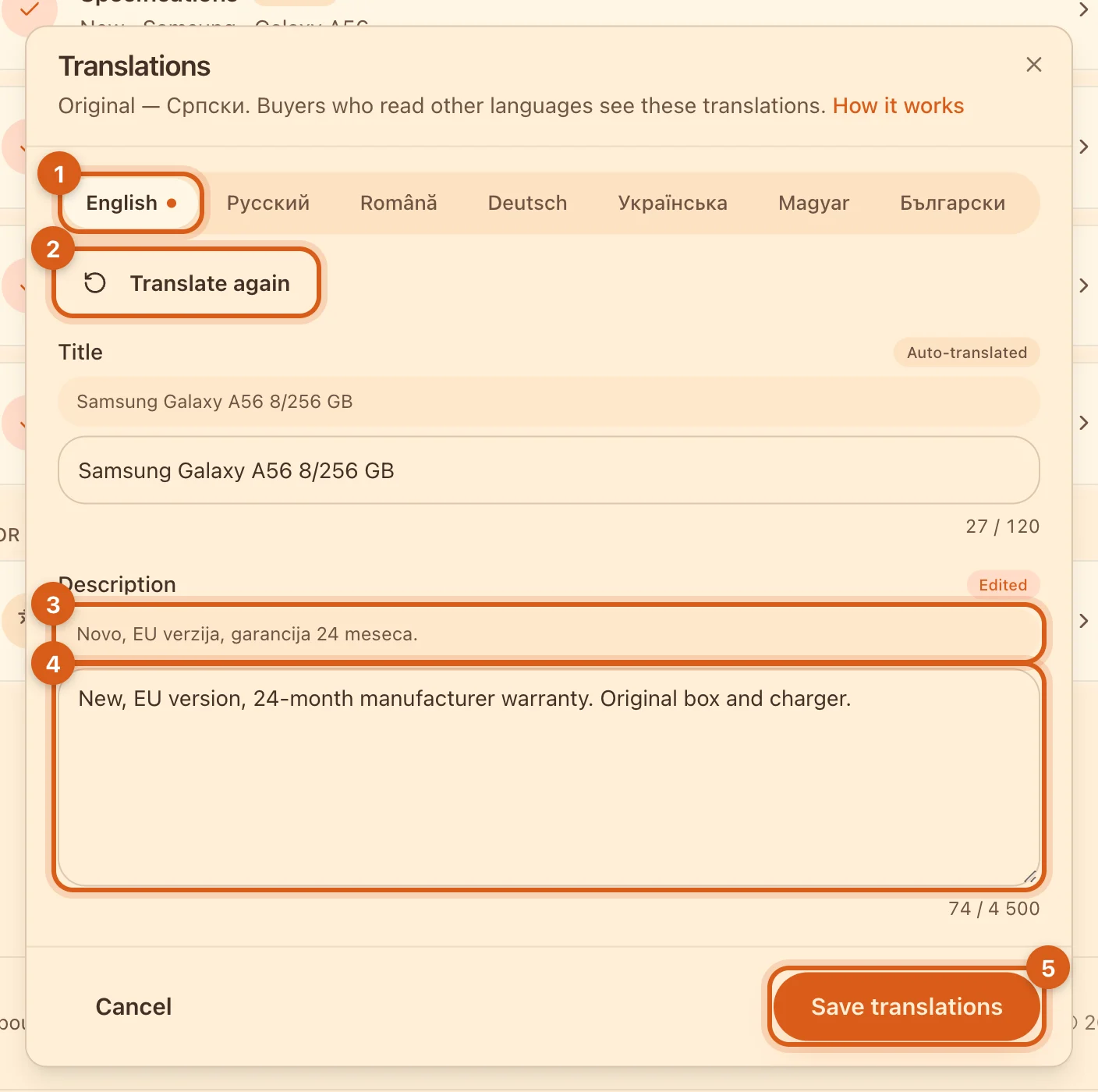
- 1The translation language. A dot on the tab means there’s an unsaved edit in this language.
- 2“Translate again” — a fresh auto-translation for this language. If the tab has empty fields, “Translate empty” appears next to it. The result goes into the field as a draft — nothing is saved until you tap “Save translations”.
- 3The original — check against it.
- 4The translation. The label above the field: “Auto-translated” — made by Ovdix, “Your translation” — saved by you, “Edited” — you’ve changed it.
- 5“Save translations” saves the edits on all tabs at once.
- Only the fields you changed become your translation. Untouched auto-translations stay automatic.
- Ovdix will never overwrite your translation. Buyers in that language see it instead of the auto-translation, including in the feed and search.
- A translation can be up to one and a half times longer than the original: 120 characters for the title, 4500 for the description.
3. Changed the listing? Check the translations
Ovdix updates auto-translations by itself. Your own translation stays as it is, and the “Translations” card gets highlighted: “Check translations: EN — the original changed”. Open it — the window goes straight to the outdated language.
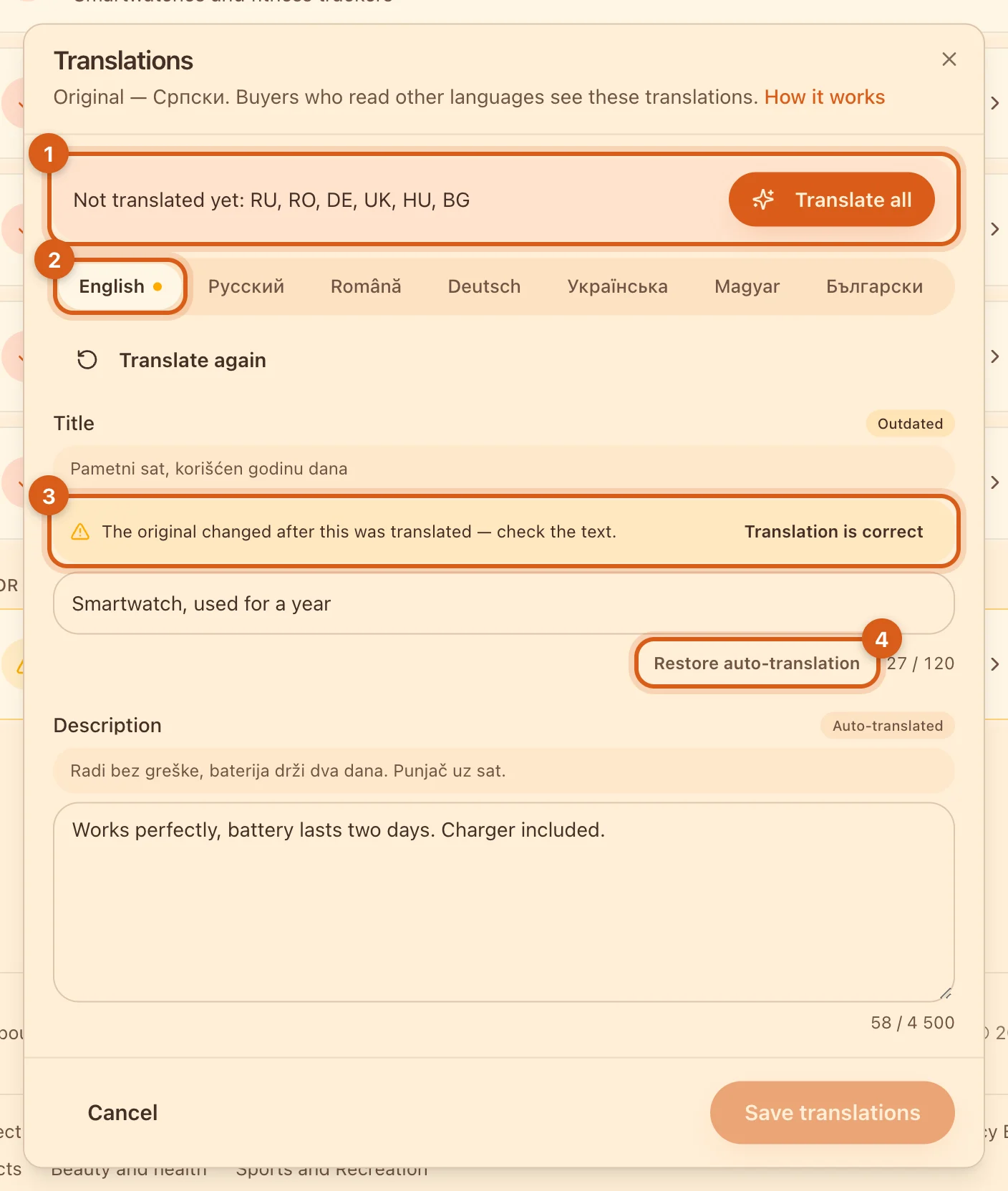
- 1Languages that aren’t translated yet. “Translate all” makes a draft for all of them at once.
- 2A dot on the tab means the translation is outdated.
- 3The translation is still right? Tap “Translation is correct”, and the mark goes away once you save. If not, fix the text.
- 4“Restore auto-translation” — after you save, your translation is deleted and buyers see the automatic one again.
Storefront name
If “Translate the storefront name” is turned off in your storefront settings, buyers see the name as is in every language. You can still enter the name for a specific language in “Translations” — for example, in Cyrillic.
Frequently asked questions
Does it cost anything?
No, editing translations is free on any plan.
Why is there no “Translations” card?
Only published listings have it. A draft has no translations yet: Ovdix translates a listing after it’s published, when someone opens it in another language. For an archived listing, translations are read-only.
Can I write something different in a translation?
No: a translation is the same text in another language. The rules and buyer reports apply to translations just as they do to the original.
Are my translations copied with “Duplicate”?
No. The copy gets your text in the original language, and Ovdix translates it again.
What about price list row translations?
You can fix them in the same window: each row has its own field. Delete a row, and its translations are deleted with it.