Chat: translation, photos and files
Write in your own language — the other person reads it in theirs. Plus photos, files and a few handy extras.
Translation, photos and files
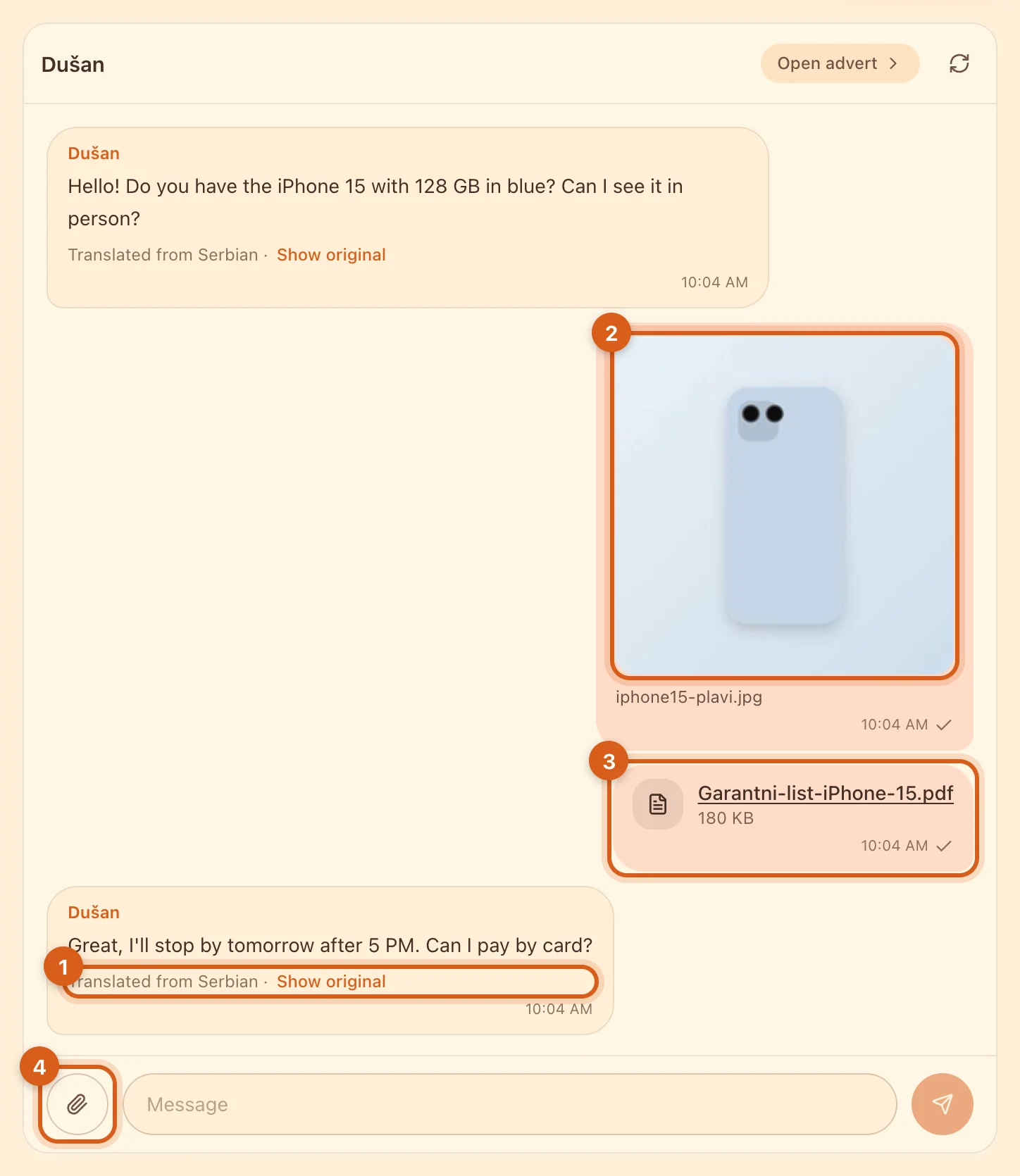
- 1The other person’s messages are translated into your interface language automatically — nothing to turn on. “Show original” shows the source text.
- 2Photos: show the item from the right angle, or its packaging. You can simply paste an image into the message field from the clipboard (Ctrl+V).
- 3Files: a warranty card, an invoice, a manual in PDF.
- 4The paperclip — pick photos or files, several at once if you like.
- Photos — up to 15 MB, files — up to 5 MB.
- Enter sends the message, Shift+Enter starts a new line.
- Hover over a message and “Copy” appears: it copies what’s on screen, the translation or the original.
- Links in messages are clickable.
Reply quickly: buyers see your response speed in the seller profile. To avoid missing messages when you’re on a computer, link Telegram — here’s how.
What the buyer sees in a new chat
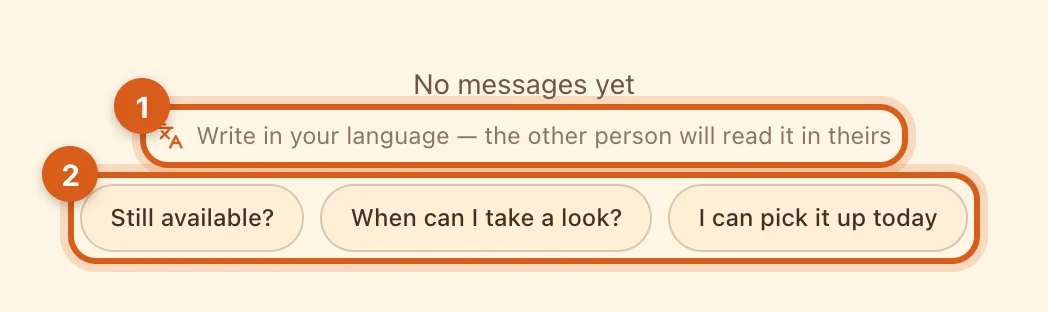
- 1A reminder that they can write in their own language.
- 2Ready-made first messages: “Still available?”, “When can I take a look?” and others. Tapping one puts the text in the field — it can be added to before sending.
Only the buyer sees these ready-made messages, and only while the chat is empty. That’s why the first message is often short — reply to it just as quickly.
Frequently asked questions
Are my messages translated?
For you, they stay as they are, while the other person reads them in their language and can also open the original.
Can I send a listing in the chat?
The chat is already linked to the listing: the “Open advert” button is at the top of the conversation. For another listing, just send a link.
Why can’t I start a new conversation?
To fight spam, the number of new conversations without a reply is limited: 5 per hour and 20 per day. Wait a little or wait for replies in the chats you’ve already started.