Storefront: delivery zones and pickup points
Buyers search near where they are. Delivery zones and pickup points show your products to people who live further from your shop.
Everything is set up in your business profile, on the “Pickup and delivery” tab. First tick “Pickup” and/or “Delivery” under “Delivery options” and save the storefront — the sections below will then appear.
Pickup points
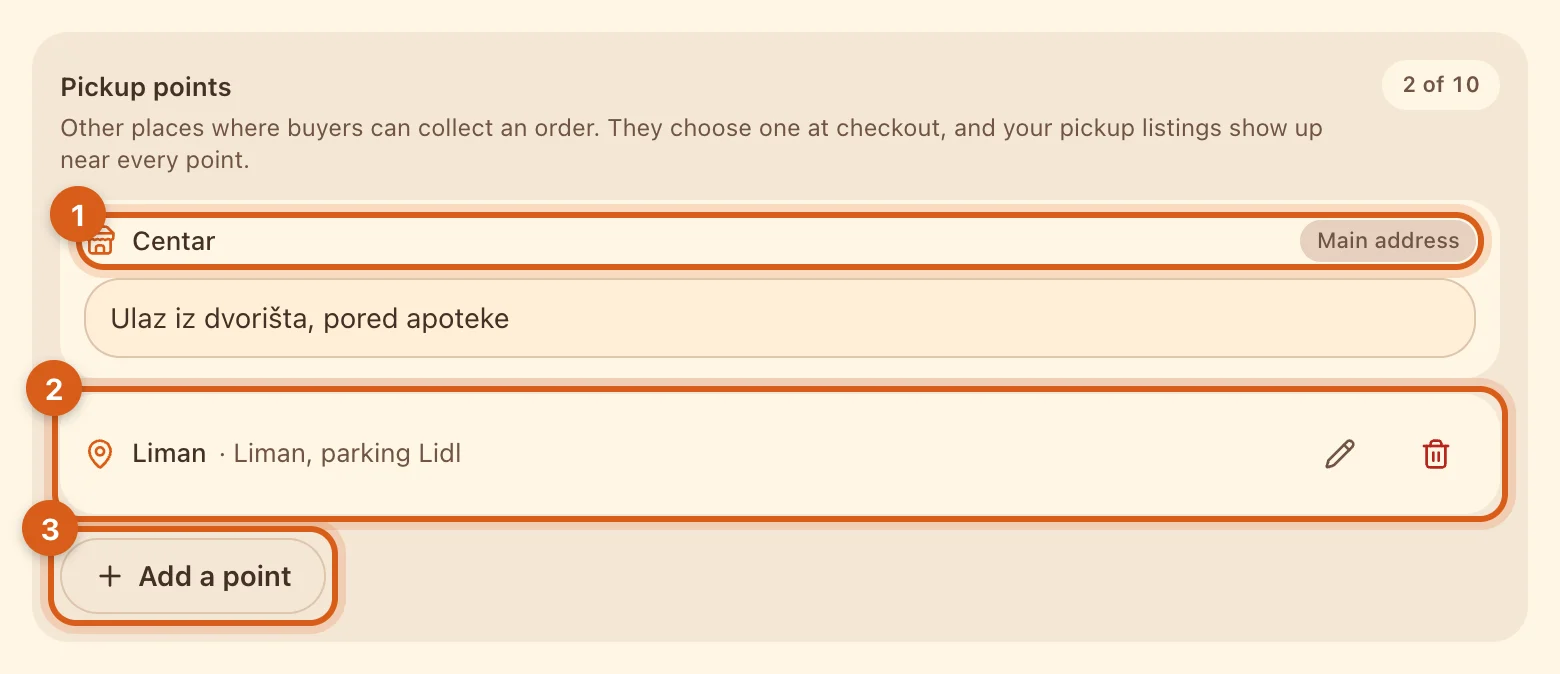
- 1Your storefront’s main address. The address itself is changed in the “Pickup address” field; here you can add a landmark to it: “entrance from the courtyard”, “next to the pharmacy”.
- 2An additional point — a second shop, a warehouse, a collection point. Each has its own landmark.
- 3“Add a point”. Top right — how many places your plan allows.
Listings with pickup are shown to buyers near any of the points. When ordering, the buyer chooses where to collect — the point closest to them is offered first.
Delivery zones
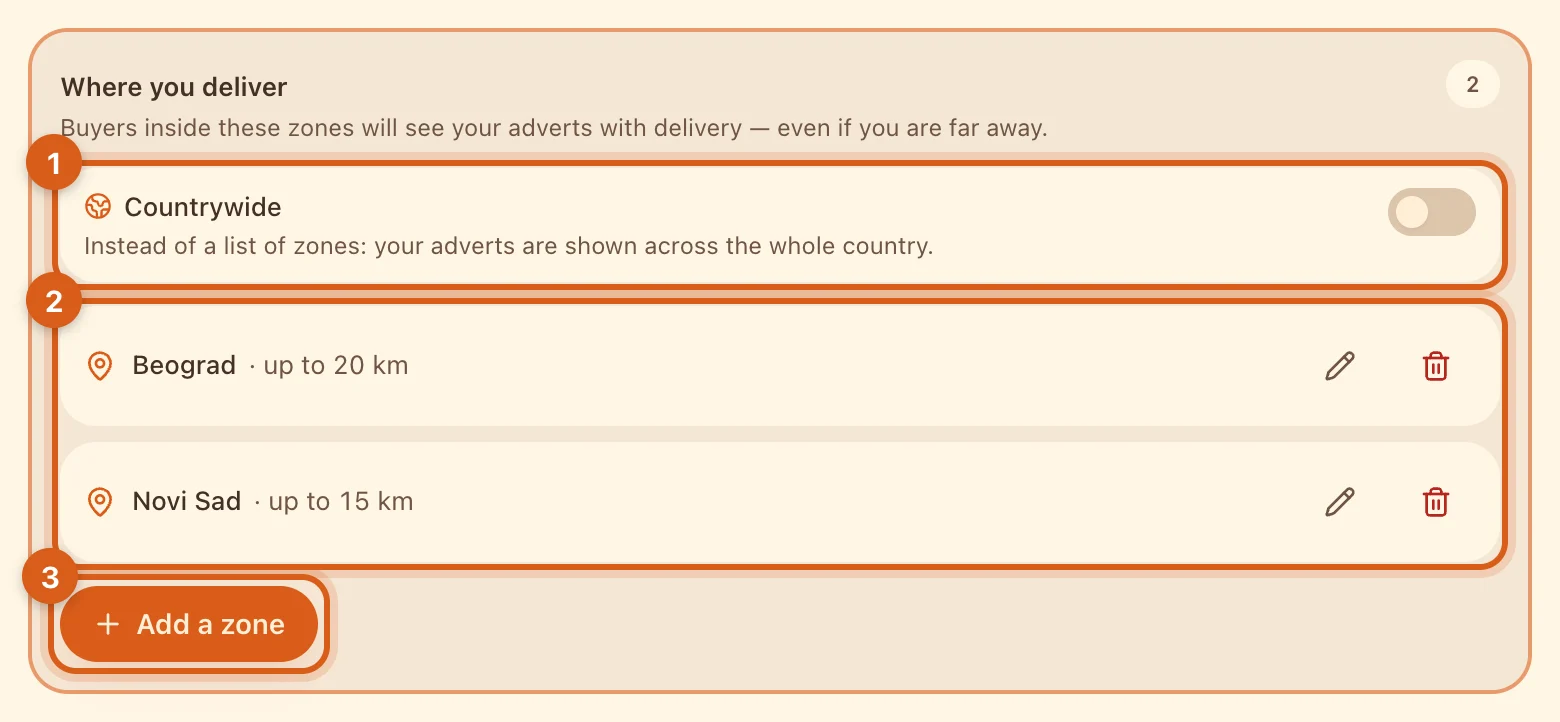
- 1“Countrywide” — instead of a list of zones: listings with delivery are shown across the storefront’s whole country. Available on Ovdix Plus and Pro.
- 2Zones: a city or area and a radius from 1 to 50 km. You can create several zones, including within one city.
- 3“Add a zone” — set the center (an address) and the radius; the circle appears on the map right away. The first zone can be created with a single button, “I deliver in my own city”.
A buyer inside a zone sees your listings with delivery even if the shop is far away. Changes take effect after you tap “Save”.
What the buyer sees
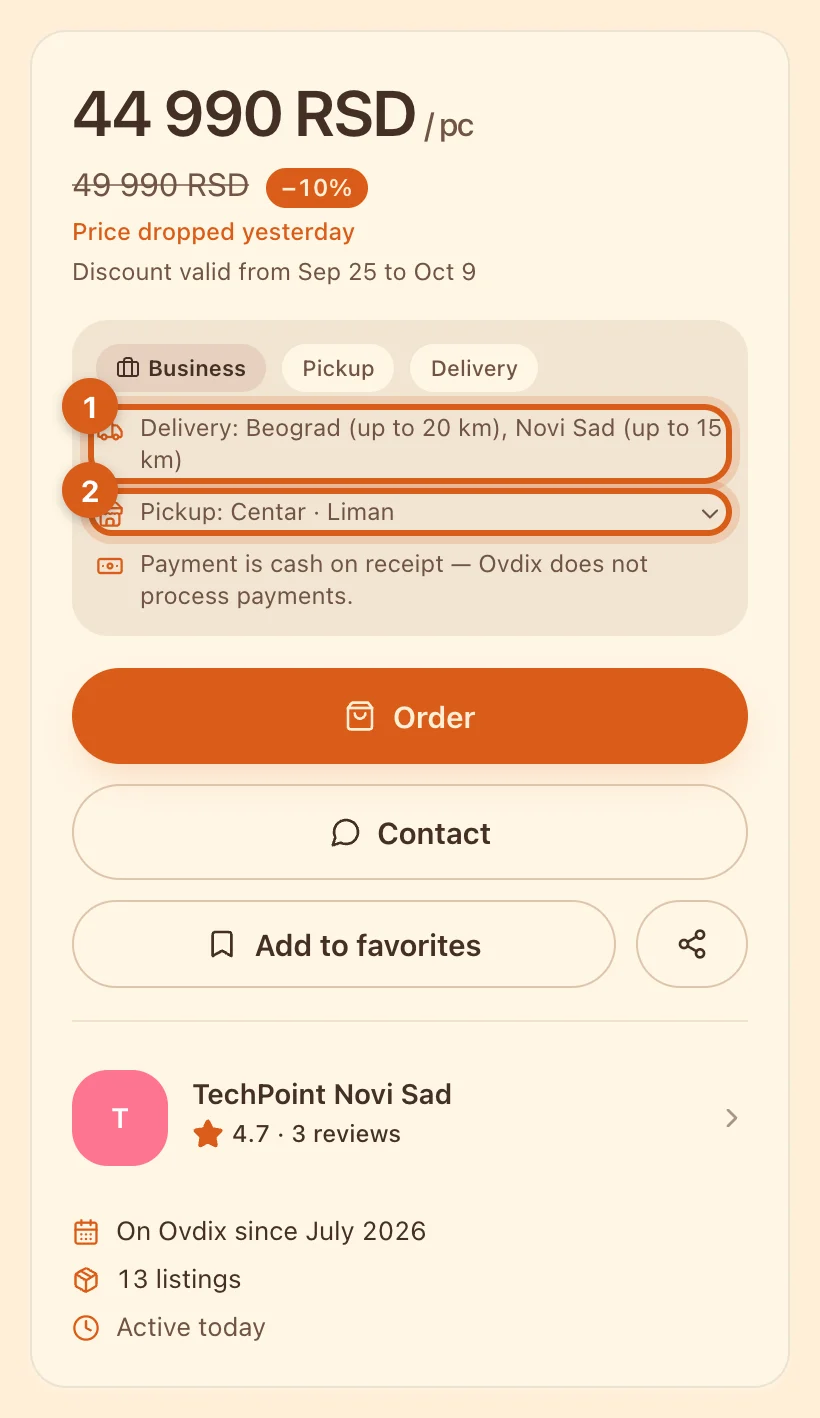
- 1Where you deliver — cities and radius.
- 2Where the item can be collected. Tap the line to open the list of points with landmarks.
In the feed and catalog, the card shows a “Delivery to …” or “… · pickup” label with the distance to the nearest point.
How many zones and points each plan includes
- Ovdix Free — 1 zone, main address only.
- Ovdix Basic — 3 zones, 2 pickup places.
- Ovdix Plus — 10 zones, “Countrywide”, 5 pickup places.
- Ovdix Pro — unlimited zones, “Countrywide”, 10 pickup places.
Frequently asked questions
Why can’t I see the zones or points section?
Tick “Delivery” or “Pickup” under “Delivery options” and save your business profile.
Does a zone change the distance shown on the card?
No. The distance is measured to the item’s address or the nearest pickup point; a zone only adds the listing to search results.
Can I set opening hours for a point?
Not yet. Put them in the landmark or in “Delivery terms”.